
How to Set Up an Email Autoresponder in cPanel
Send automatic replies such as "We are away until Monday" from any email address in cPanel. Step by step with pictures, plus how to edit or turn it off.
Fix "Class DOMDocument not found" on cPanel hosting: turn on the PHP dom extension in Select PHP Version, use PHP Selector for your domain, and fix Laravel Artisan.
To fix the error Class "DOMDocument" not found on HostGrap cPanel hosting, turn on the PHP DOM extension yourself in cPanel. Open Select PHP Version, choose the PHP version your website uses, and tick dom in the list of extensions. If the error is still there after that, open the Per Domain Settings tab in the same tool and click Use PHP Selector next to your domain, so that the domain uses the settings you just changed. This guide shows each step with pictures, and how to check that it worked for both your website and Laravel Artisan commands.
DOM is a PHP extension that lets PHP read and change HTML and XML documents. The DOMDocument class comes from it. Many PHP tools need it: Laravel and many of its packages, PDF and Excel libraries, sitemap and RSS generators, HTML sanitisers and some WordPress plugins.
When the extension is off for the PHP version that runs your code, PHP stops with an error such as Class "DOMDocument" not found or Call to undefined function dom_import_simplexml(). Nothing is wrong with your code: PHP is simply missing a part that your code expects. On HostGrap cPanel hosting you can turn it on in a minute, without opening a ticket.
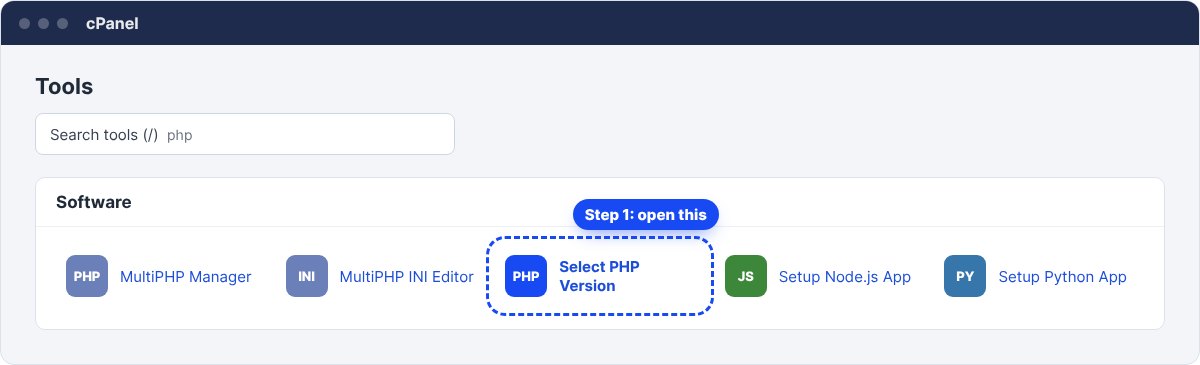
Log in to cPanel. In the Software section, click Select PHP Version. You can also type "php" in the search box at the top of cPanel to find it quickly. Do not confuse it with MultiPHP Manager, which is a different tool next to it.
Select PHP Version opens on the Account Global Settings tab. At the top you see Current PHP version. Choose the version your website needs, for example 8.2 for a Laravel 10 or 11 project. If it shows "native", pick a numbered version from the list, because the extensions of the native version can't be changed here.
Extensions are set for each PHP version on its own. If you tick dom while 8.4 is selected, it is on for PHP 8.4 only, not for 8.2. So make sure the version shown here is the same one your website and your commands use.
Below the version you see every extension, in alphabetical order. Scroll to D and tick dom. Extensions with a light grey tick, such as date, are built in and always on.
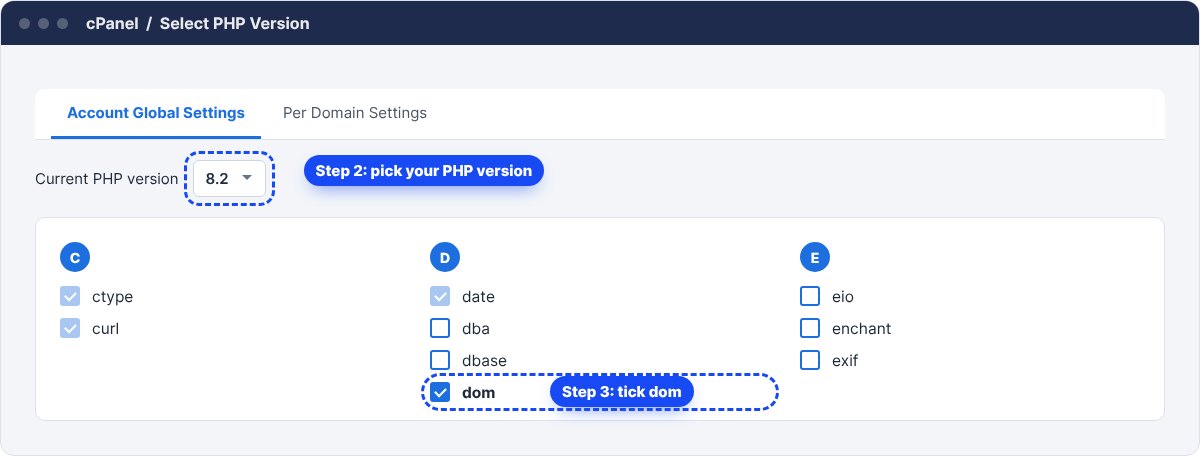
In most versions of the tool the change is saved as soon as you tick the box. If your page shows a Save button, click it. Then reload your website. For most accounts, the error is gone at this point.
A domain can get its PHP from one of two tools: the PHP Selector (the Select PHP Version tool you just used) or cPanel's MultiPHP Manager. The extension you ticked only works for domains that use PHP Selector. If your domain uses MultiPHP Manager, it does not see the change, and the error stays.
To check, open the Per Domain Settings tab in Select PHP Version. The table shows each domain in your account, its PHP version and which tool handles it. Find your domain. If the Action column shows a blue Use PHP Selector button for it, click that button. The domain then uses PHP Selector and the dom extension you turned on in Step 3. Domains that show Use MultiPHP Manager already use PHP Selector, so leave them as they are.
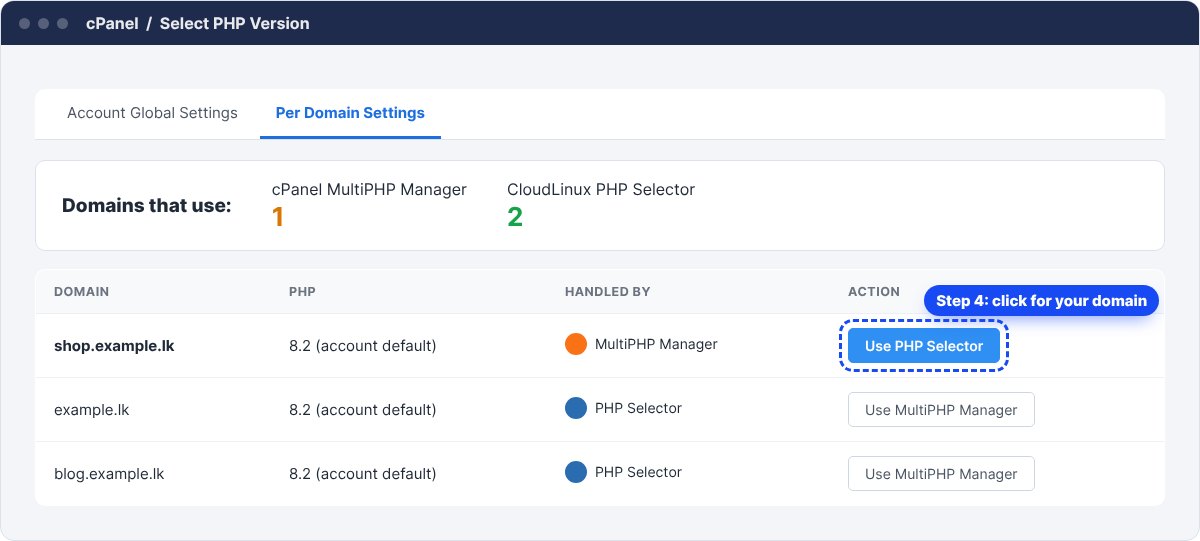
After the switch, check the PHP version shown for the domain. If it is not the version you set up in Step 2, choose the right one in Account Global Settings and make sure dom is ticked for it.
Artisan, Composer and cron jobs run PHP from the command line, not through your website, so they use whichever PHP program you call. On HostGrap cPanel servers each PHP version has its own program, for example /opt/alt/php82/usr/bin/php for PHP 8.2. The extensions you tick in Select PHP Version for a version are used by that version's program as well, so turning on dom for 8.2 fixes php artisan too, as long as you call the 8.2 program.
To check, open Terminal in cPanel (or connect with SSH) and run:
/opt/alt/php82/usr/bin/php -m | grep -i domIf the answer is dom, the extension is on for PHP 8.2 on the command line. Then run Artisan with the same program, for example:
cd ~/myapp && /opt/alt/php82/usr/bin/php artisan optimize:clear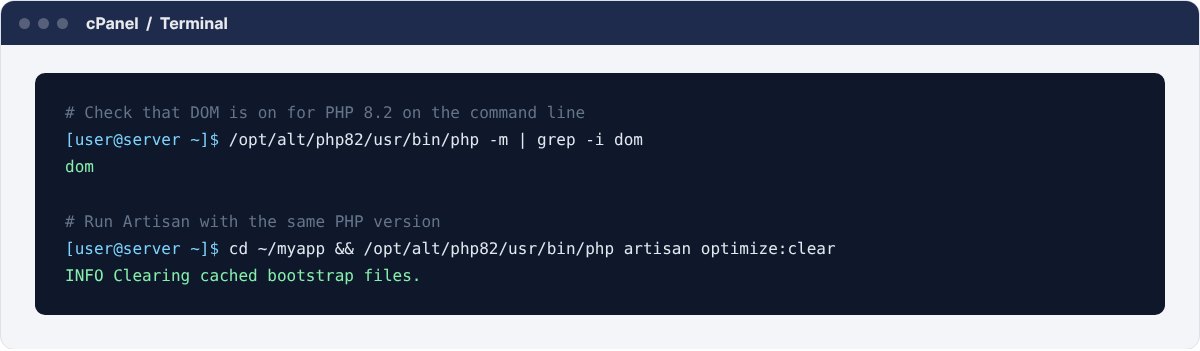
Use the same full path in your cron jobs, for example /opt/alt/php82/usr/bin/php /home/username/myapp/artisan schedule:run, so that your scheduled tasks run on the same PHP version, with the same extensions, as your website. Change 82 to your version (81, 83, 84) and username and myapp to your own.
| Where | What to check |
|---|---|
| Select PHP Version, Account Global Settings | The PHP version your site uses is selected, and dom is ticked for it |
| Select PHP Version, Per Domain Settings | Your domain is handled by PHP Selector (if not, click Use PHP Selector) |
| Terminal or SSH | Your version's PHP program, run with -m, lists dom |
| Cron jobs | The command uses the full path of the same PHP version |
Not always. The extensions that are on by default can differ between PHP versions and between accounts, so a project that worked on one version can fail after you change to another. Checking the list in Select PHP Version shows you exactly what is on for each version.
No. On HostGrap cPanel hosting you can turn PHP extensions on and off yourself in Select PHP Version, as shown above. If you follow every step and still see the error, message our support team and tell us your domain, the PHP version and the exact error, and we will check it for you.
No. The DOM extension is small and is only used when your code needs it. Turn on the extensions your software asks for and leave the rest off.
Because the website and the command line can use different PHP versions. When you type php in Terminal, the version that runs may not be the one your website uses. Call the full path of the right version, such as /opt/alt/php82/usr/bin/php artisan, and check it with -m as shown above.
This guide is for cPanel hosting with Select PHP Version. On a VPS or VDS you manage the server yourself, so you install the extension with your server's package manager or control panel. For example, on Ubuntu with PHP 8.2 from the Ondřej Surý repository, the package is php8.2-xml, which includes DOM.
If you need help, message us on WhatsApp in English, Sinhala or Singlish. You can see every cPanel hosting plan here.
Send automatic replies such as "We are away until Monday" from any email address in cPanel. Step by step with pictures, plus how to edit or turn it off.
Create an email address on your domain in cPanel in under a minute, and change its password later from Manage. Step by step, with pictures.
HostGrap Technologies now has its own ASN, AS217984. What an ASN is and what it brings you: our own IP addresses, faster local traffic in Sri Lanka, RPKI and IPv6.