How to Create an Email Account in cPanel
Create an email address on your domain in cPanel in under a minute, and change its password later from Manage. Step by step, with pictures.
Send automatic replies such as "We are away until Monday" from any email address in cPanel. Step by step with pictures, plus how to edit or turn it off.

An autoresponder sends an automatic reply to everyone who emails an address, for example "We are away until Monday" or "Thank you, we have received your message". To set one up in cPanel, open Autoresponders in the Email section, click Add Autoresponder, choose the email address, write the subject and message, and click Create. You can change or remove it any time from the same page.
The autoresponder only sends the reply. To keep receiving the emails as well, the address needs an email account or a forwarder. cPanel warns about this on the page: if neither exists, each email is answered by the autoresponder and then thrown away, and nobody reads it.
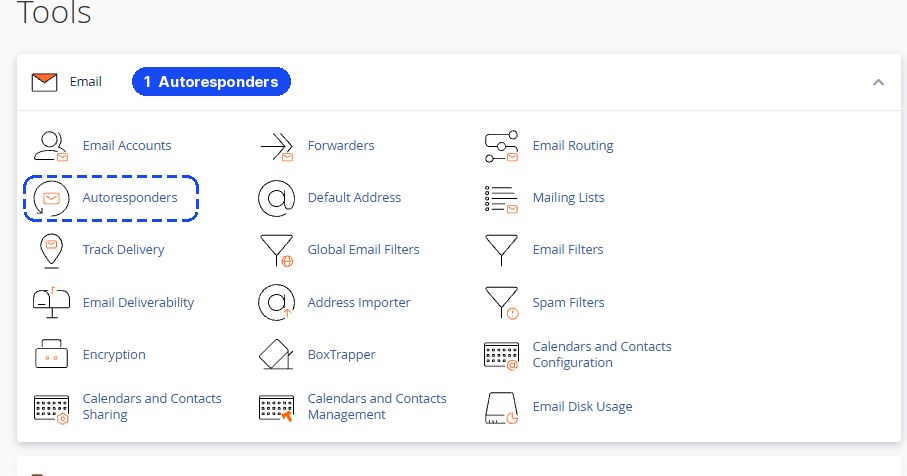
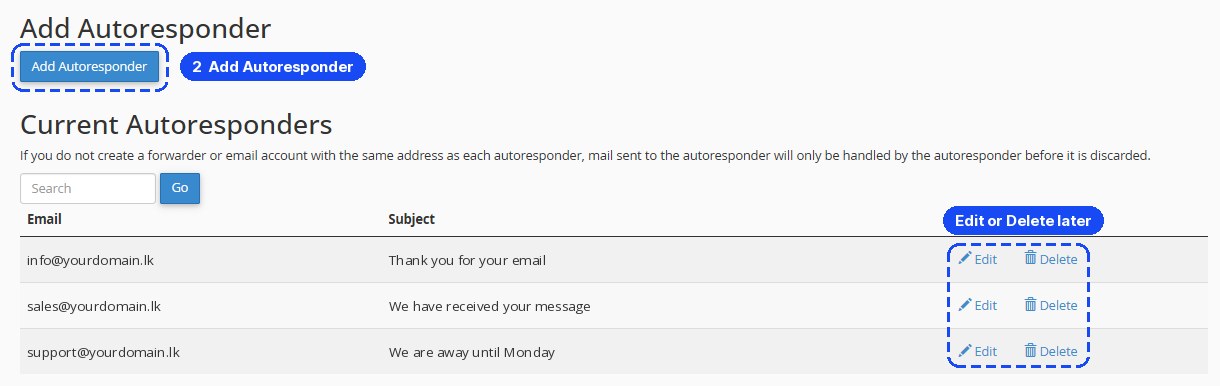
Log in to cPanel. In the Email section of the tools, click Autoresponders.
The page shows the autoresponders you already have under Current Autoresponders. Click the blue Add Autoresponder button.
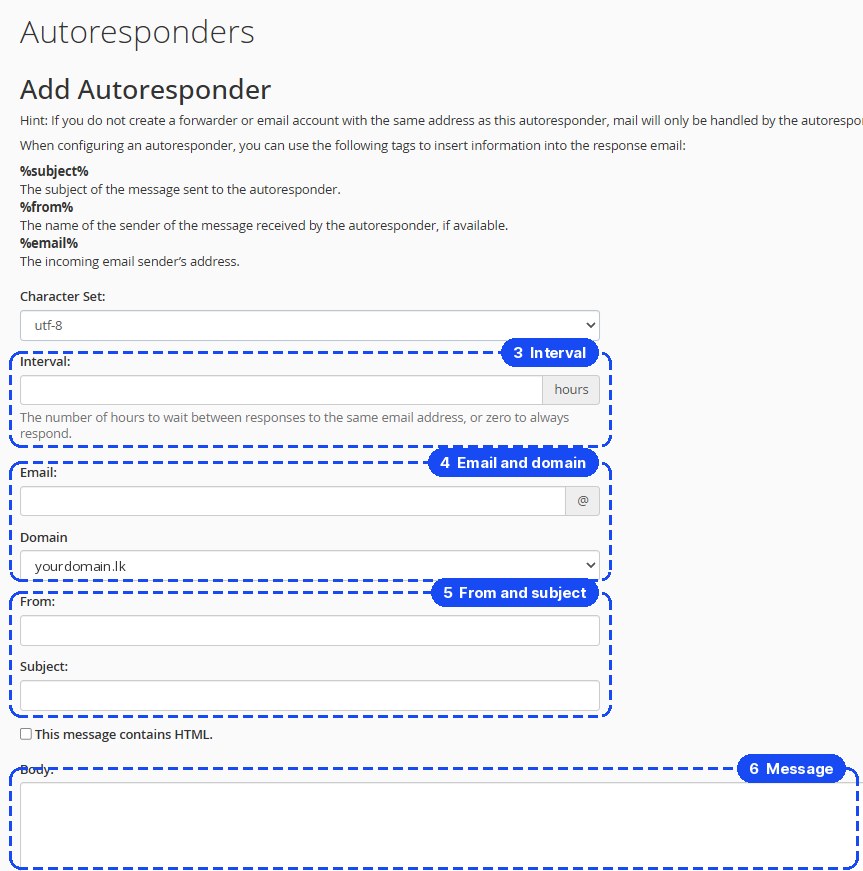
Character Set. Leave it as utf-8. It works for English, Sinhala and every other language.
Interval. The number of hours before the same person gets the reply again. Without it, someone who sends you five emails gets five replies. 24 hours suits most out-of-office replies. Type 0 only if every single email must get a reply.
Email and Domain. Type the part of the address before the @, such as info, and choose the domain. Together they make the address that sends the automatic reply, such as [email protected].
From. The name people see on the reply, such as your business name or your own name.
Subject. The subject of the reply. You can add %subject% to repeat the subject of the email you received, for example Re: %subject%.
Body. The message itself. Keep it short and useful: say why you are replying automatically, when you will answer, and another way to reach you if it is urgent. You can use these tags, and cPanel fills them in for each email:
| Tag | What it becomes |
|---|---|
%from% | The sender's name, when their email has one |
%email% | The sender's email address |
%subject% | The subject of the email they sent |
For example:
Hi %from%,

Thank you for your email. Our office is closed for the holidays until Monday, 1 December. We will reply to your message as soon as we are back.

For anything urgent, please message us on WhatsApp.

Best regards,
Your business name
Leave This message contains HTML unticked unless you are writing the message in HTML code. Plain text is read well on every phone and mail app.
Under the message you choose when the autoresponder works:
Start. Immediately turns it on as soon as you click Create. Custom lets you pick a date and time, for example the evening your office closes for a holiday.
Stop. Never keeps it on until you delete it, which suits a "thank you, we have received your message" reply on a support address. Custom turns it off on its own at the date and time you pick, which suits a holiday message: set it to the day you are back.
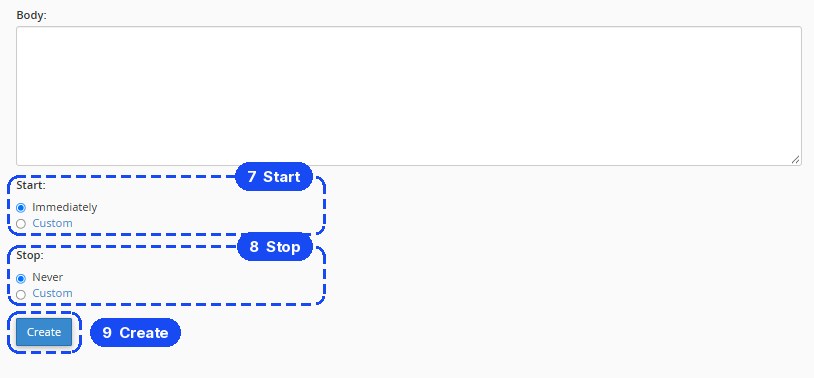
Click Create. The autoresponder works at once, and it appears under Current Autoresponders.
Open Autoresponders again. Click Edit next to the address to change the message or the dates, or Delete to turn it off. Deleting the autoresponder does not delete the email account or any emails in it.
It replies to each sender once per interval. With an interval of 24 hours, a person who writes to you several times in a day gets one reply that day. Automatic emails, such as newsletters, can also receive a reply, which is another reason to use an interval above 0.
Yes. Add one autoresponder for each address. They can have the same message or different ones.
Yes, as long as the address has an email account or a forwarder. The autoresponder sends its reply and the email is delivered as normal.
Yes. Keep the Character Set as utf-8 and write the subject and message in Sinhala, English or both.
If you get stuck on any step, message us on WhatsApp. To learn how to create the email account first, see how to create an email account in cPanel.
Create an email address on your domain in cPanel in under a minute, and change its password later from Manage. Step by step, with pictures.
Fix "Class DOMDocument not found" on cPanel hosting: turn on the PHP dom extension in Select PHP Version, use PHP Selector for your domain, and fix Laravel Artisan.
HostGrap Technologies now has its own ASN, AS217984. What an ASN is and what it brings you: our own IP addresses, faster local traffic in Sri Lanka, RPKI and IPv6.