
How to Set Up an Email Autoresponder in cPanel
Send automatic replies such as "We are away until Monday" from any email address in cPanel. Step by step with pictures, plus how to edit or turn it off.
Create an email address on your domain in cPanel in under a minute, and change its password later from Manage. Step by step, with pictures.
To create an email account in cPanel, open Email Accounts in the Email section, click Create, choose your domain, type the name you want before the @, set a password and click Create. The new address works at once. To change the password of an email account later, click Manage next to it, type the new password under Security and click Update Email Settings. Both take less than a minute.
Log in to cPanel. In the Email section of the tools, click Email Accounts. You can also type "email" in the search box at the top of cPanel.
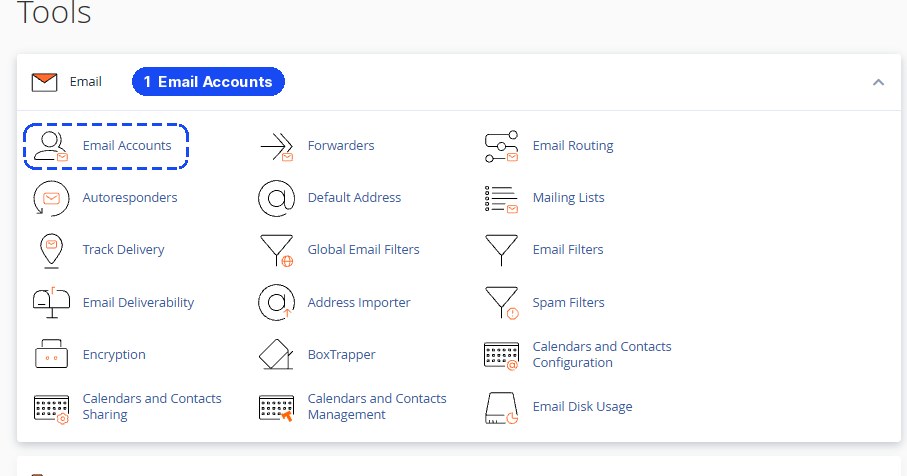
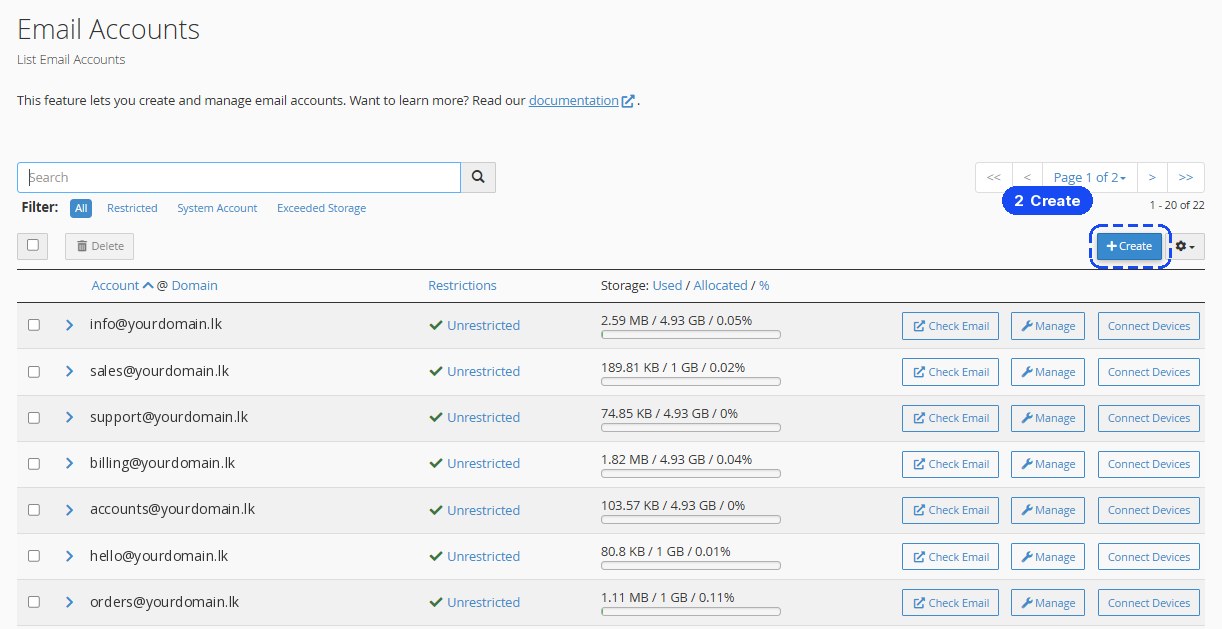
The page lists the email accounts you already have. Click the blue Create button on the right, above the list.
Domain. If you have more than one domain in your cPanel account, choose the domain the address should end with. With one domain, it is already chosen.
Username. Type the part of the address before the @. For example, type info to make [email protected]. You can use letters, numbers, dots, dashes and underscores. Short, clear names such as info, sales or your first name work best.
Password. Keep Set password now selected and type a strong password, or click Generate to let cPanel make one. If you generate it, copy it somewhere safe before you leave the page. The bars under the box show how strong the password is: aim for all of them to be green.
If the account is for someone else, you can choose Send login link to alternate email address instead. cPanel then emails them a link to set their own password, so you never need to know it.
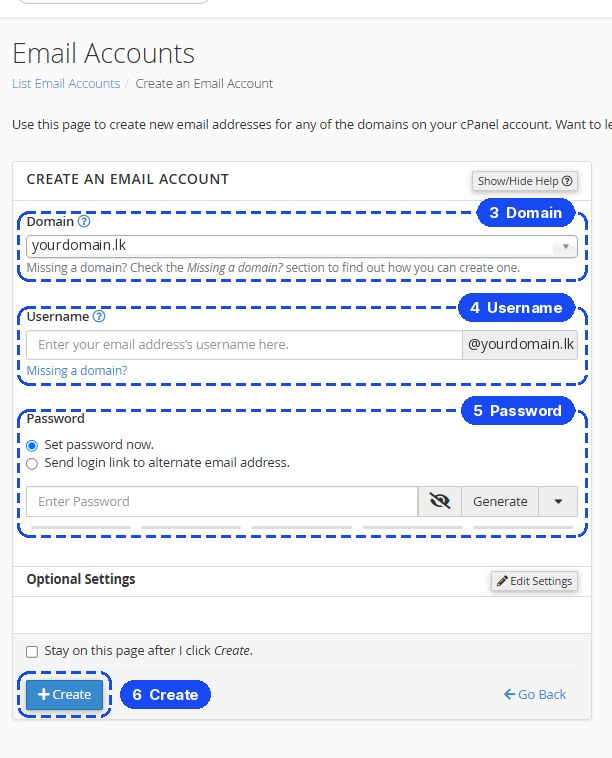
Optional Settings has the storage space for the account and a few other choices. You can leave them as they are and change them later. Click Create. cPanel shows a message that the account was created, and the new address appears in the list.
The account is ready to use. Click Check Email next to it to read mail in your web browser, or Connect Devices to see the settings for Outlook, Gmail and phone mail apps.
Use these steps when you want a new password, or when someone has forgotten theirs. Only the password changes: the emails in the account stay as they are.
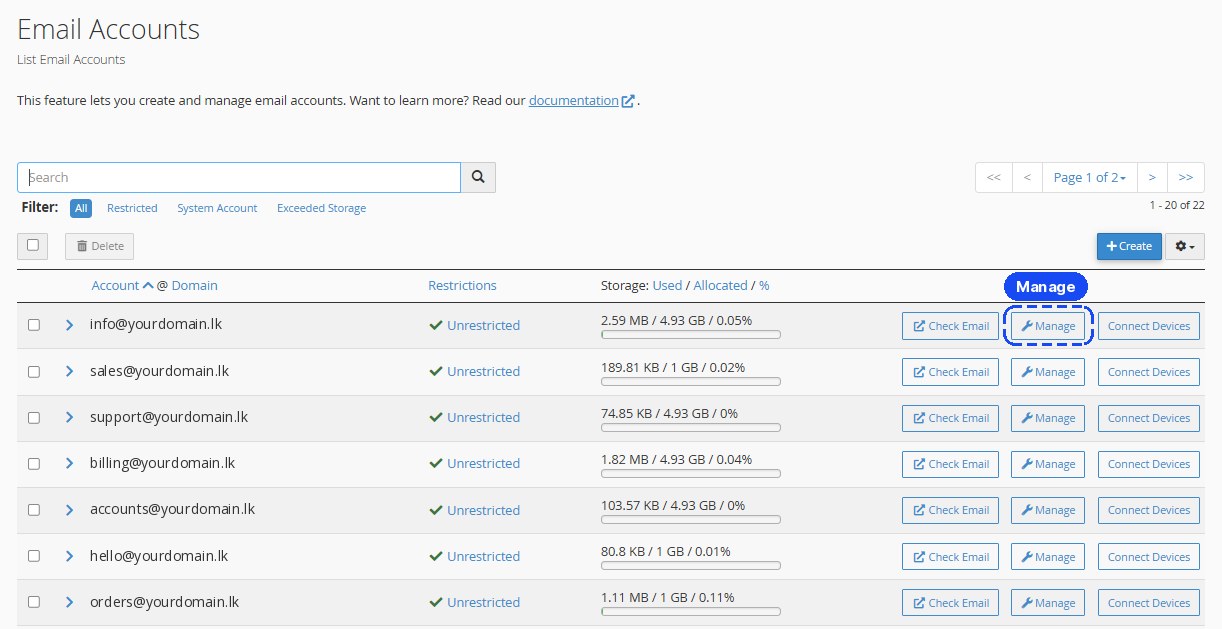
Open Email Accounts again, as in step 1 above. Find the address in the list and click Manage on its row.
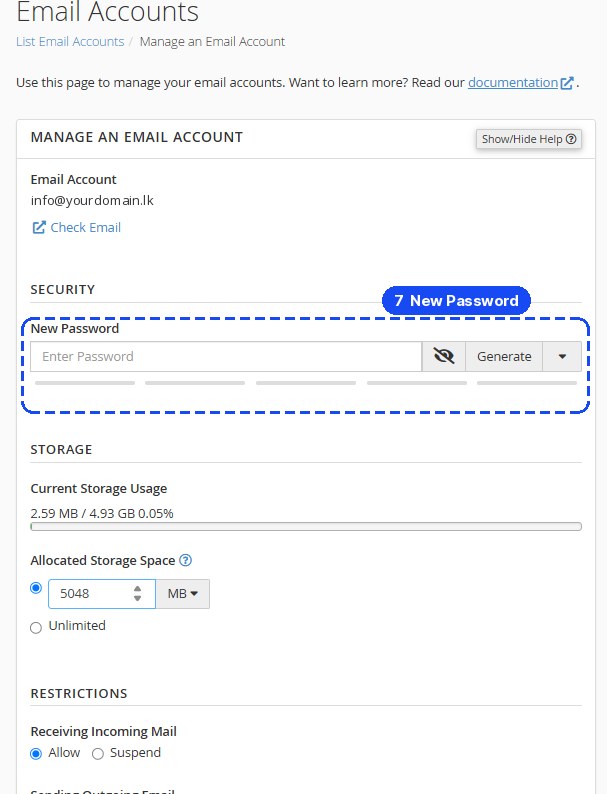
Under Security, type the new password in New Password, or click Generate to make one. Leave the box empty if you only came to change other settings, such as the storage space below it.
Scroll to the bottom of the page and click Update Email Settings. The new password works straight away.
After a password change, also update it in every mail app that uses the account, such as Outlook or the mail app on your phone. Until you do, those apps can't send or receive mail and will keep asking for the password.
Yes, as long as it is not already used on the same domain and it uses only letters, numbers, dots, dashes and underscores. Spaces are not allowed.
Click Check Email next to the account in cPanel to open webmail in your browser. To use Outlook, Gmail or your phone, click Connect Devices, which shows the mail server names and ports for your account.
Log in to cPanel and set a new password with the steps above. You don't need the old password, and the emails in the account are kept.
Yes. Click Manage next to the account and change Allocated Storage Space under Storage, then click Update Email Settings. The space comes from your hosting plan's total disk space.
If you get stuck on any step, message us on WhatsApp. You can also see our business email hosting plans and cPanel hosting plans.
Send automatic replies such as "We are away until Monday" from any email address in cPanel. Step by step with pictures, plus how to edit or turn it off.
Fix "Class DOMDocument not found" on cPanel hosting: turn on the PHP dom extension in Select PHP Version, use PHP Selector for your domain, and fix Laravel Artisan.
HostGrap Technologies now has its own ASN, AS217984. What an ASN is and what it brings you: our own IP addresses, faster local traffic in Sri Lanka, RPKI and IPv6.