WordPress Update Flaw CVE-2026-119977: Block wp-content/upgrade Before You Update
CVE-2026-119977 lets attackers run code while WordPress updates. HostGrap already blocks wp-content/upgrade on every server. Here is how to update to 7.1.4 safely anywhere else.
HostGrap Team
7 min read
CVE-2026-119977 is a WordPress core flaw that attackers are already using. It lets someone with no account run code on a server while WordPress is in the middle of a core update. WordPress fixed it in version 7.1.4 and in matching releases for every branch back to 4.7, but the update that installs the fix can still leave a short opening on many sites. The safest order is to block web access to the wp-content/upgrade folder first, and only then update WordPress. Websites on HostGrap hosting are already protected: we block that folder on every server.
What is CVE-2026-119977?
When WordPress updates itself with a complete package, it unpacks a full copy of the new version into a temporary folder inside wp-content/upgrade. That copy includes the WordPress installer, and on most servers the web server can reach the folder. For a few seconds, before WordPress deletes the copy, anyone who knows the folder's name can open that installer in a browser.
An attacker who gets there in time can set up the temporary copy with a database they control, log in to it as an administrator and run their own PHP code. That code runs with the same permissions as your website, so the attacker can then read and change the files of the real site. Before the fix, the attacker could also plant a fake wp-config.php file that the update would copy over the real one.
The flaw affects WordPress 4.7 to 7.1.3. Wordfence, which assigned the CVE number, rates it 8.1 out of 10, while WordPress's own advisory rates it low because the window is so short. The U.S. Cybersecurity and Infrastructure Security Agency (CISA) has added it to its list of vulnerabilities known to be used in real attacks.
Why can installing the fix still expose a site?
The fix gives the temporary folder a random name, so an attacker can no longer guess it. The problem is that the update which brings the fix is unpacked by the old code that is already on your site, not by the new code. On WordPress 5.9 and later, that old code names the folder after the file it downloaded, so during this one update the name is still easy to predict.
The part of the fix that stops a fake wp-config.php being copied over does work during this update, because WordPress copies the new files into place with the new code. But the installer in the temporary copy can still be reached for a moment, and that is enough for an attacker to run code.
Once your site is on 7.1.4 or the fixed release for its branch, later updates use a random folder name and are no longer exposed in this way.
Which updates are at risk?
The risk depends on whether the package WordPress downloads contains the installer files. A complete package always contains them. A partial package only holds the files that changed between two versions, so it exposes a site only if those changed files happen to include the installer.
In general, an update within the same branch, such as 7.1.3 to 7.1.4, is offered as a smaller partial package. A jump from an older branch, such as 7.0.7 to 7.1.4, is offered as a complete package. WordPress also falls back to a complete package if your core files do not match the official versions or if you reinstall WordPress. Automatic background updates use the same updater and the same steps, so they are not safer.
On WordPress 4.4 to 5.8, the old code adds random characters to the folder name, which hides it unless your site leaks the name somewhere else, for example in an error message.
Is my HostGrap website affected?
No. We have added a ModSecurity rule on every HostGrap hosting server that answers any request with /wp-content/upgrade/ in its address with a 403 Forbidden error. Nobody can reach that folder from the web, so the temporary installer can't be opened during an update. WordPress itself works with the folder directly on disk, so your updates keep working as normal.
This covers websites on HostGrap shared, WordPress, business and reseller hosting. You can update to WordPress 7.1.4 straight away, and you don't need to change anything. You can check it yourself by opening yourdomain.com/wp-content/upgrade/ in a browser, which shows a 403 error.
If you run your own server on a HostGrap VPS or Virtual Dedicated Server, the software on it is managed by you, and the server rule above does not apply to it. Follow the steps below before you update.
How do I update WordPress safely?
First, stop the web server from serving the wp-content/upgrade folder. WordPress works with that folder directly on disk, so blocking web access to it does not break updates.
If your website is with another host and runs on Apache or LiteSpeed, and you can only edit .htaccess, open the .htaccess file in your WordPress folder (usually public_html) and add this line at the very top, above the "# BEGIN WordPress" block:
RedirectMatch 403 ^/wp-content/upgrade/
If your WordPress site is in a subfolder, such as /blog, add the subfolder to the rule, so it reads ^/blog/wp-content/upgrade/.
Do not put a new .htaccess file inside the wp-content/upgrade folder itself. The old updater empties that folder before it unpacks an update, so the file would already be gone at the moment it is needed.
Next, check that the block works. Open yourdomain.com/wp-content/upgrade/ in a browser. You should see a 403 Forbidden error. Only then update WordPress to 7.1.4, or to the fixed release for your branch, from Dashboard, Updates. You can leave the rule in place afterwards, since nothing on a normal site needs that folder to be reachable from the web.
If you manage your own server, for example a HostGrap VPS or VDS, you can block the folder in the web server configuration instead. On Nginx, add location ^~ /wp-content/upgrade/ { deny all; } to the site's server block. On Apache, add Require all denied inside a Directory block for that folder in the virtual host.
Is there another safe way to update?
Yes. You can update WordPress by hand outside the folder the web server serves. Back up your files and database, unpack the new release into a folder that is not public, copy the core files into place without touching wp-config.php or the wp-content folder, and then run the WordPress database update. No temporary installer is ever placed where a browser can reach it.
Updating with WP-CLI's wp core update command is not a way around the problem, because it uses the same updater and unpacks the package into the same folder.
How do I check if my site was attacked?
Wordfence saw attack attempts start nine minutes after it released a firewall rule for this flaw, and some attackers kept checking the same small groups of sites for about 14 and a half hours, which fits with trying to catch a site at the moment it updates. Code that claims to exploit the flaw has also appeared on GitHub, although it has not been confirmed that it works.
If your site stayed on an affected version after the fix came out, look through your server's access logs for requests to PHP files under wp-content/upgrade, and check the folder itself for PHP files that nobody put there. In WordPress, look for administrator accounts you do not recognise and plugins that nobody on your team installed. If you find any of these, change all passwords, remove the unknown accounts and plugins, and restore a clean backup from before the attack. On HostGrap hosting you can restore files and databases from the daily backups in cPanel.
What about very old WordPress versions?
WordPress 4.6 and earlier no longer receive security updates, so there is no fix for them. The researcher says the underlying problem goes back to WordPress 2.7 from 2008. If you still run one of these versions, move to a supported version as soon as you can, using the manual method above.
The short answer
If your website is on HostGrap shared, WordPress, business or reseller hosting, it is already protected, because we block wp-content/upgrade on every server. Update to WordPress 7.1.4 now. Anywhere else, block that folder first, check that it returns a 403 error, and then update. After that, check your site for unknown administrator accounts, unknown plugins and stray PHP files in wp-content/upgrade. If you are not sure how to do any of this, message HostGrap support on WhatsApp and we will help you.
CVE-2026-119618 is a critical flaw in Apache's HTTP/2 module, fixed in Apache 2.4.71. Learn who is affected, why WordPress updates cannot fix it, and how to patch or turn off HTTP/2.
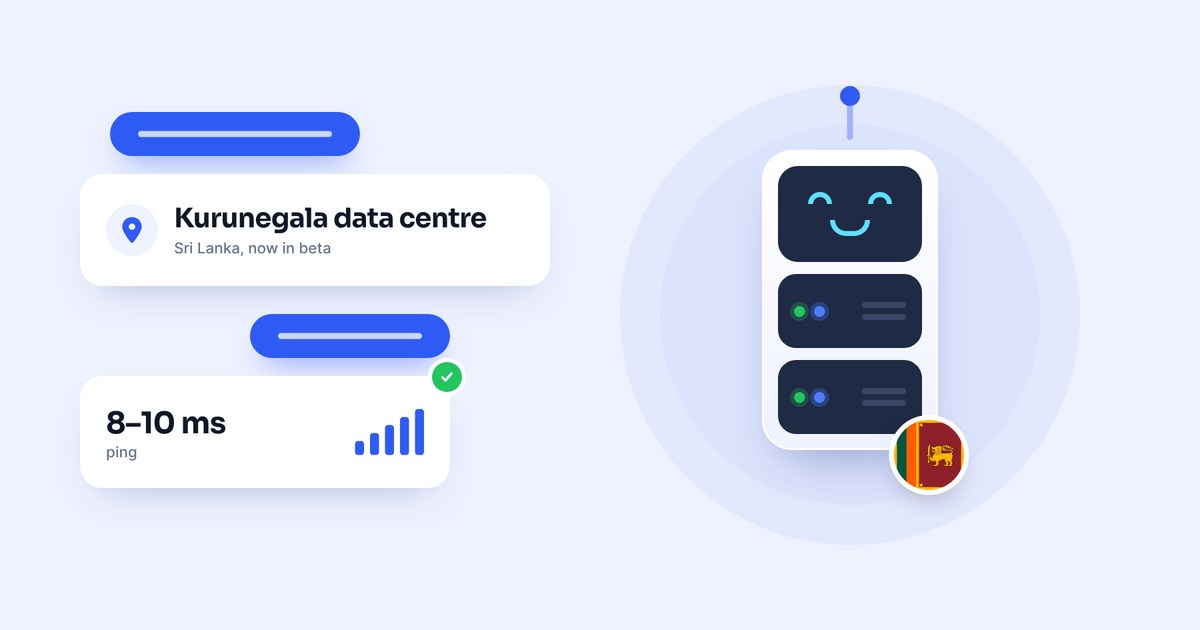
HostGrap's new Kurunegala data centre is live in beta: 8 to 10 ms ping on Sri Lankan fibre, a 2 Gbps SLT uplink and backup power. Plans open 1 December 2026.
HostGrap AI answers on live chat and WhatsApp around the clock. See everything it can do, from website checks and IP unblocks to billing, domains and tickets.